
The Life Fitness Discover SI, SI-TV, SE, SE3, SE3HD, ST as well as the Cybex R Series 70T consoles allow to (re-)calibrate the touch screen, when the calibration would be slightly off. In some cases though, the calibration can be off in such a way, that using the touch screen as normal with your fingers and try go into the System Options menu to do the actual re-calibration, isn't possible.
In those cases a USB mouse can be used as an alternative method to re-calibrate the touch screen.
NOTE: The Discover SE4 and Symbio consoles use a different touch screen technology and therefore don't need to be re-calibrated.
Instructions per console type
1. SE3, SE3HD, ST, 70T with green colored user interface
(Software version 4.21.xx and newer)
2. SE3, SE3HD, ST, 70T with orange colored user interface
(Software versions 4.09.xx until 4.20.xx)
3. SE, SI and SI-TV
Tools required
- PC USB mouse
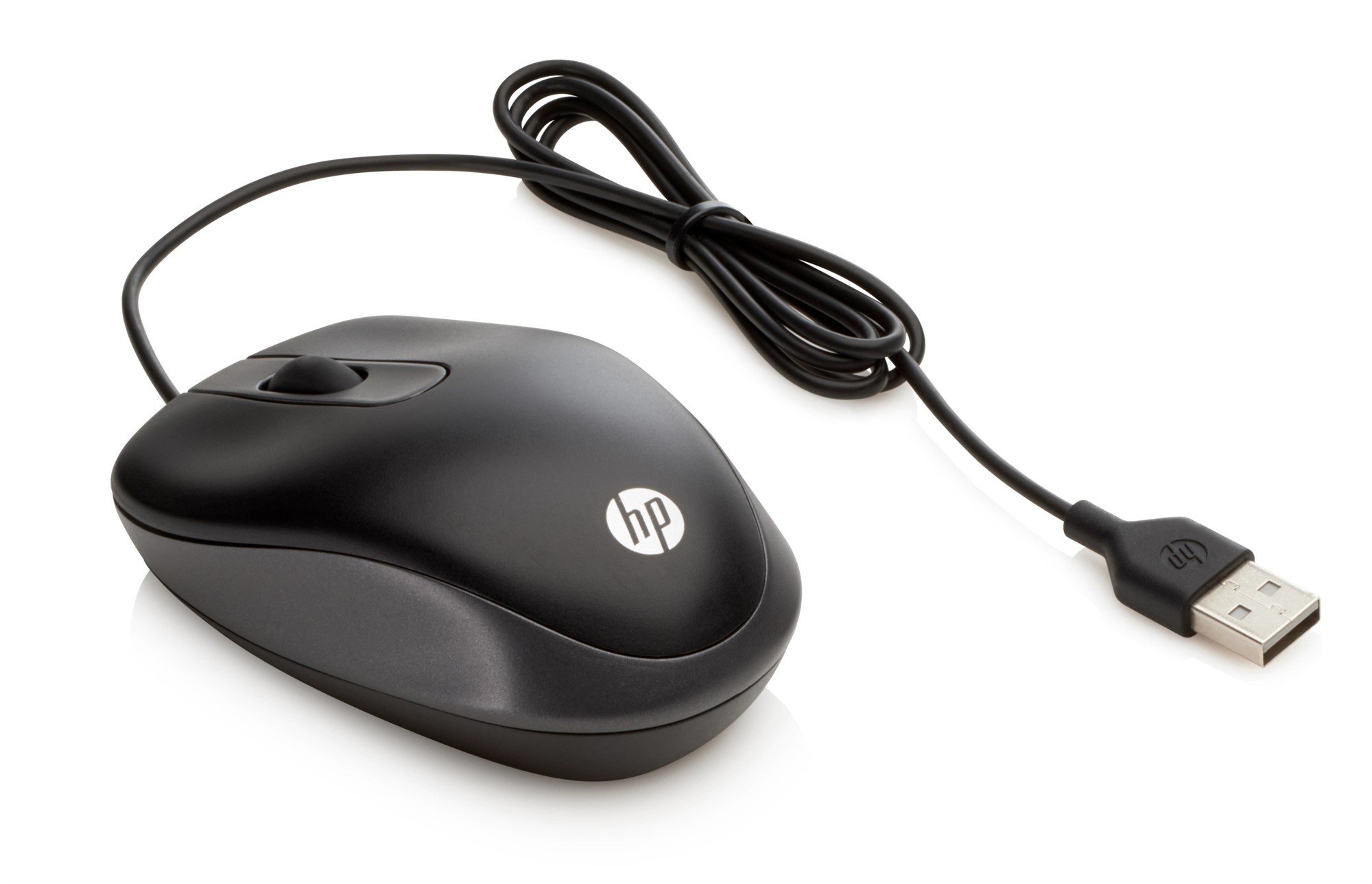
1. SE3, SE3HD, ST, 70T with green colored user interface
(Software version 4.21.xx and newer)
2. SE3, SE3HD, ST, 70T with orange colored user interface
(Software versions 4.09.xx until 4.20.xx)
Step 1. Plug the PC mouse into the external USB port on the reading rack of the console:
Step 2: Once the mouse is recognized, a cursor will appear on the screen. Select Go to Workouts using the mouse to navigate and left button to select:
Step 3: Once in the workouts screen, use the left mouse bottom to press the sequence " Top Left, Top Right, Top Left, Top Right " to enter Diagnostic shown below. Use the mouse to select Configuration , then Touch Screen Configuration :
Step 4: Select the Touch to calibrate using the mouse.
Step 5: This will initialize the touch calibration process. You MUST touch the screen, do not use the mouse to touch the dots:
-
A red dot will appear on the lower left of the screen, touch and hold the green dot on the screen for 2 seconds. When released, the dot will turn red.
-
Another green dot will appear in the upper right corner, touch and hold the green dot for 2 seconds. When released, the dot will turn red and return to the calibration menu.
Step 6: Once finished with the touch calibration procedure, you can remove the USB mouse and the touch screen should respond normally. Return to the main screen and the process is complete.